
Previous step: Advanced Layout Configuration Settings
If you are preparing to train a baseline, field, or table model, it may be necessary to create a customised layout for complex or diverse documents.
Furthermore, if the automatic recognition does not meet your requirements, manual corrections may be necessary, particularly for documents with complex layouts.

For example, during the process of manually transcribing or correcting the automatic transcription, it is possible to encounter empty regions, lines that are too short, or instances where the automatic recognition has identified two lines instead of one.
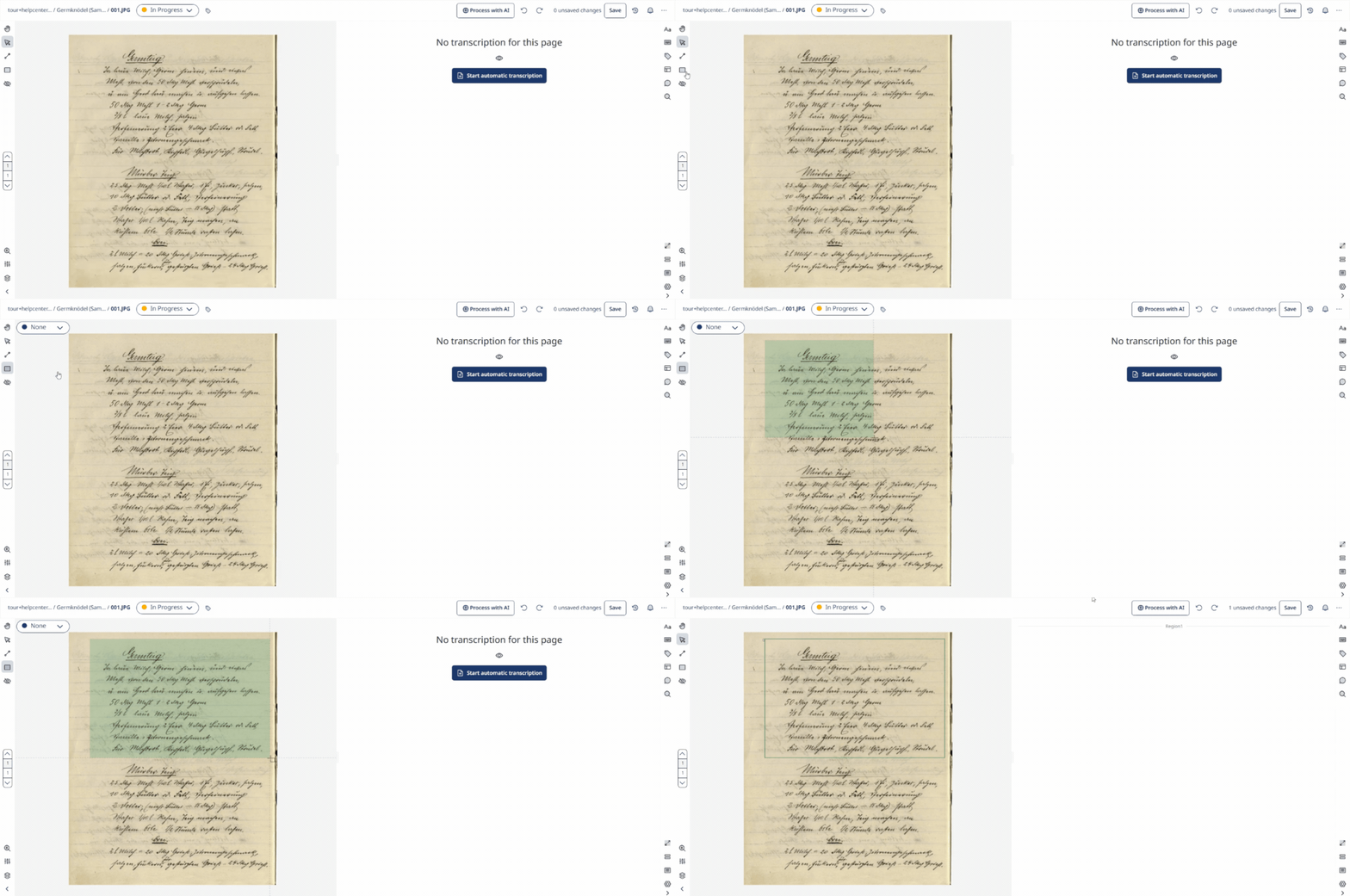
To edit the layout, open the page. The Transkribus Document Editor shows the image and the text, on the right or below the image, according to your viewing preferences. In the top left corner of the editor, you will find the buttons to add a new line, region, and table.
To learn more about all the available editing options, you can access the list of all Keyboard shortcuts. Simply click on the three-dot icon located at the top right of the web page and select "Keyboard shortcuts." This list will provide you with detailed explanations and instructions on how to utilise these editing features effectively.
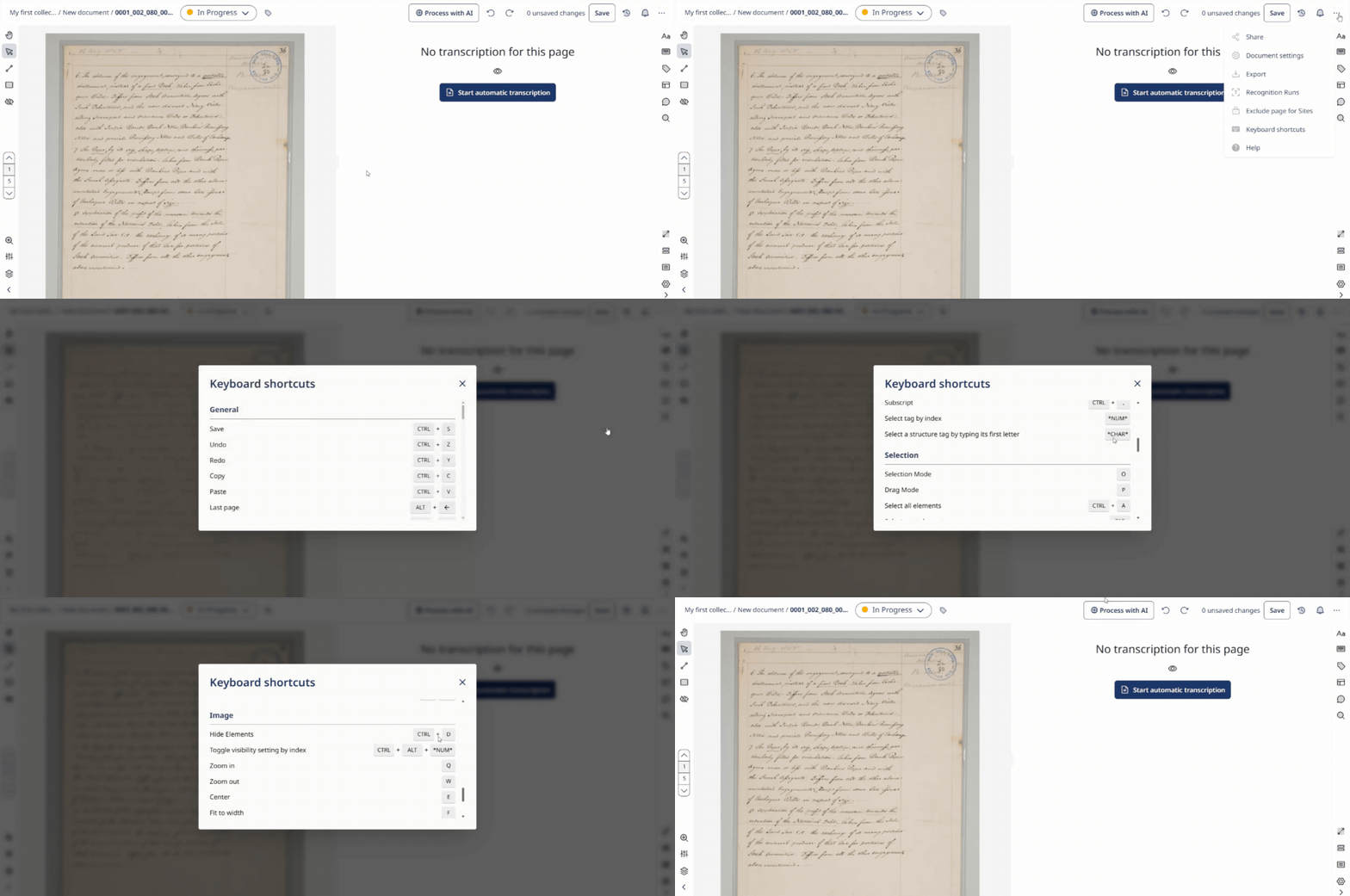
- To add new text regions, press the region button, select "Add Text Region," click on the image once to open up the region and then click again to create the specific area where the text should be located
- To add new lines, press the Baseline button, click on the image multiple times, and finish the line with a double click or enter
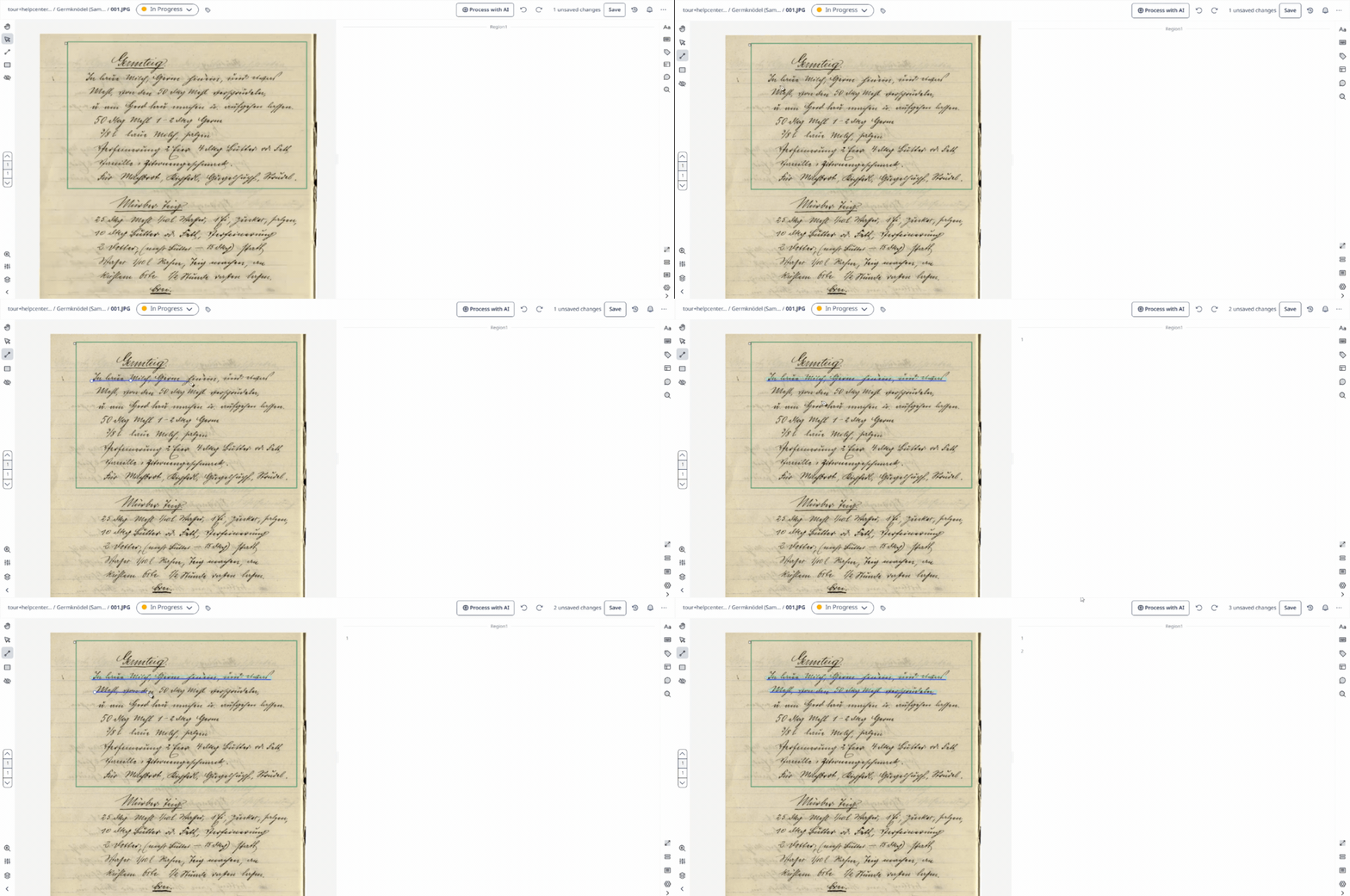
- New points can be added by clicking in the middle of a line and dragging the new point to a new position
- Press DEL to delete a selected shape
- Hold SHIFT to move and scale shapes
- Press CTRL+B to select all lines of a selected region
- Hold CTRL or Command to select multiple shapes by clicking or by spanning a selection rectangle
- Press TAB to select the next shape (following the reading order)
- Select a line and hold A to add points to the beginning or end of it
- Select a shape and hold V to split it vertically
- Select a shape and hold H to split it horizontally
- Select a shape and hold C to split it with a custom line (use arrow keys to change the angle); hold C+CTRL and use arrow keys to draw more precise angles
- Press M to merge two selected lines
- Press ESC to leave the current mode and enter selection mode
- Press CTRL+C to copy all selected shapes
- Press CTRL+V to paste copied shapes (to the same page or a new one)
It is also possible to edit a shape using the context menu that appears when you right-click on a shape. To find the full list of shortcuts, click on the three-dot icon located at the top right of the web page and select Keyboard shortcuts.
Next step: Baselines Models