
Before you can start transcribing, you need to upload your material to Transkribus. Transkribus makes it easy to organise your files by uploading pages or entire documents to specific collections. This helps you manage your historical data and makes your files easier to find. After you have uploaded your pages or documents, you can start the automatic text recognition.
1. Uploading a document to a collection
2. Supported file formats
3. Uploading pages to a document
1. Uploading a document to a collection
In Transkribus, a document refers to a set of images that are part of a file, manuscript, book.
To upload a document to Transkribus, click and open the collection you want the document to belong to. Once in the collection, click on Upload in the top-bar menu on the right. 
To start the upload, simply drag and drop the files or browse and select them from your local drive, provide a document title, and click the Submit button.
You can upload individual pages, entire folders, or multiple PDFs at once; each folder or PDF will be created as a separate document. Additionally, you can see information about the upload restrictions related to file types, sizes, and page counts in the upload window. If the files do not meet these criteria, you will receive an error notification.
After you submit the upload, the document will appear in your collection with a progress bar indicating the upload status. You can also monitor this in the "Process & Activity" section, under "Uploads & downloads", in the left-hand menu. Once the upload job is complete, the document is ready to open and work with.
2. Supported file formats
The supported file types are:
-
Image
Accepted image file formats are JPEG/JPG, PNG, and TIFF, with a maximum file size of 20 MB per image. A resolution of around 300 dpi is sufficient; higher resolutions are not necessary, as they will not improve the text recognition results. Lower resolutions, instead, would affect the quality of the automatic transcription.
All images selected in one upload will be uploaded as one document; each image will be one page of the document. You can upload up to 3000 files at a time.
If you select multiple folders, Transkribus will create a separate document for each folder and automatically use the folder names as the document titles. -
PDF
When uploading a PDF, each page of the PDF is extracted and uploaded as a page of the document. PDFs have a file size limit of 512 MB.
You can upload up to 200 PDF files at a time. If you upload multiple PDFs in one go, each PDF will be created as a separate document, and the PDF title will be used as the document title. -
IIIF
The International Image Interoperability Framework (IIIF) is a set of open standards for delivering high-quality, attributed digital objects online at scale. IIIF manifests are JSON files that describe the structure and metadata of digital objects (Example: https://iiif.io/api/cookbook/recipe/0001-mvm-image/manifest.json). You can find them in digital libraries and archives, museum collections, academic repositories.
You can enter the URL of the IIIF manifest you want to upload. If you flag the "Bulk upload" option, you can upload multiple documents at once: enter one manifest URL per line. -
FTP
You can upload files to the FTP server at ftp://transkribus.eu by using your favorite FTP client. Please use your Transkribus credentials to access the FTP server.
After the upload is done, you can ingest the documents by selecting the folders. Each folder will be ingested as a separate document in the current collection.Source folders are deleted after ingestion. Folders not ingested will be deleted after 14 days.
3. Uploading pages to a document
You can easily add individual pages to an existing document in Transkribus by following these steps:
- Open the document in Transkribus to which you want to add them.
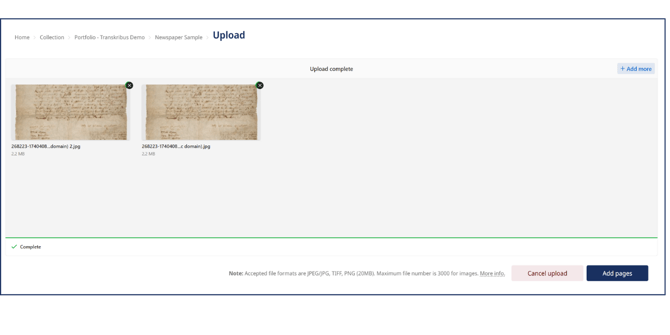
- In the document viewer, click the "Add pages" button in the top right-hand corner of the interface.
- A window will appear asking you to upload the new pages. You can upload individual pages or multiple pages at once in formats such as JPEG, PNG or TIF.
- Once the pages have been uploaded, they will appear at the end of the document by default. You can then rearrange the pages by selecting a page, opening the three-dot menu, and choosing "Move page" to specify its new position.
After adding and arranging the pages, you can continue to process or transcribe the document as usual.
All documents uploaded to Transkribus are private by default. They are stored on the servers of READ-COOP SCE (i.e. the company that develops and maintains the software). The servers are all located in Innsbruck, Austria, in a GDPR-compliant manner, and the data may be processed according to the terms & conditions on the READ-COOP SCE website.
If you would like to share your collection with other Trankribus users to work collaboratively, have a look at the Managing Users page.
Next Step: Downloading