
What is a Dataset?
A dataset is a structured pool of pages containing verified transcriptions (Ground Truth). When training a custom AI text recognition or layout model, you must organize your pages into three distinct subsets:
- Training Data: The core bulk of your pages used to fit the parameters of the model, i.e. the data on which the knowledge in the net is based on. This data is called Ground Truth in Machine Learning. In Transkribus, it is used to indicate the images and the corresponding transcriptions used to train the Artificial Intelligence. The transcriptions should be as accurate as possible because any mistake in the Ground Truth will train the model to learn something wrong.
- Validation Data: A small portion of pages used by the system during the training process to continuously check accuracy and prevent the model from overlearning. In other words, the pages of the Validation Data are set aside during the training and are used to assess its accuracy.
- Test Data: An independent set of pages used after training to provide an unbiased evaluation of how well the final model performs on unseen text.
For more information on Model Setup have a look here: Model Setup and Training.
Creating a New Dataset
You can create a new Dataset from the Datasets overview:
- Navigate to the left-hand sidebar and click "Datasets".
- Click the "Create Dataset" button.
- Fill out the Dataset Details: Provide a name, description, ground truth type (e.g., Text Recognition), language, and century range.
- Choose your Visibility: "Private" (default) or "Public" (visible to all Transkribus users).
- You can also add a License type and DOI under Advanced.
Adding Pages to Datasets
Once a dataset is created, it will initially be empty. You can add pages from your personal collections or enhance it by using public datasets:
- Go to Collections or open the document overview.
- Check the boxes on the specific pages or documents you want to include.
- Click on "Actions" next to the selection count and choose "Add to dataset".
- Select whether to assign these pages as Training Data, Validation Data, or Test Data.
To remove pages, simply open your dataset tab, select the pages under the Actions menu, and clear them from the set.
You cannot add the same Ground Truth pages twice, if you have selected pages that already exist in the dataset those pages will be skipped during the copy to dataset.
If you are trying to re-add pages that were edited in your collections after they were uploaded to the dataset the system will ask you if you would like to interchange them with the existing pages in the dataset.
Note: Any changes to the original Ground Truth in the Editor are not applied to the pages in the dataset automatically.
Managing and Splitting Dataset Versions
Datasets support version control, allowing you to track changes over time as your Ground Truth improves.
- Initial Version: When first created, your data is saved as the "Initial Version".
- Adding Versions: Click the dropdown next to the version name to "Create a new version", add descriptive notes, or Freeze Version to lock it from any further changes under the dropdown menu "Options".
- Audit Log: View the modification history to track which pages were added or modified and by whom under the dropdown menu "Options".
- Add Members: Here you can also click on "Members" and add members to the collection or manage already existing member roles.
- Move %: If you would like to split your datset with more specific percentages between
Automatic Dataset Split
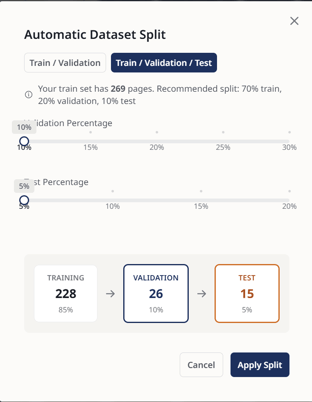
Instead of manually assigning every page to a category, you can use the Automatic dataset split tool found on the main dataset view.
- Click on "Automatic dataset split".
- Choose your layout configuration:
- Train / Validation: Use the slider to automatically separate a designated percentage (recommended 5-10%) into Validation pages.
- Train / Validation / Test: Use the slider to automatically split your pages into all three categories (recommended split: 80% Train, 10% Validation, 5-10% Test).
- Click Apply Split.
You can also choose to copy an existing frozen version of your dataset and use it as your latest dataset version if needed by clicking on "Fork from this version" under the Version dropdown.
Training a Model on Your Dataset
When you are satisfied with your Ground Truth and data distribution, you can begin training.
- Click on the "Train Model" button in the top right corner of the dataset interface.
- Select your target collection and add the required parameters (e.g. model name, description, language, centuries etc.).
- Select your preferred Training parameters. For more information on Training parameters have a look here: Model Setup and Training.
- Now you can start your training.
Note: The dataset version you select will be automatically frozen the moment you launch the training process to ensure consistency and scientific reproducibility.
How to Use the Test Set
Your Test Data is automatically excluded from the training process. Once the model is generated, run it against your Test Set pages to get an exact, unbiased Character Error Rate (CER). This reveals how accurately your newly trained AI model will perform on unseen documents of the same style.
The function to use Test Set is currently not available, this feature will be added in the future. However, splitting your data into a Test Set for future use is already possible.
Publishing Datasets
You can give all Transkribus users access to your curated Datasets by publishing them in the Transkribus App.
- To make your dataset public go to "Edit metadata" under the dropdown menu "Options".
- Scroll down and select "Public" (or "Private" if you would like to set it back to private) under "Visibility" and click on "Update dataset" to publish your dataset version.
Note: Public datasets require admin approval before they become visible to all users. You will be notified once your dataset has been reviewed and published.
Linking Datasets to Projects
To share your data or organize it alongside broader research assets, you can link datasets directly to Projects.
- Click on the "Link symbol" next to the Verions button.
- Search for your target project and click Save.
Note: It is currently only possible to publish Datasets or link Datasets with Projects if you are on a paid Transkribus subscription.
Next step: Training a Custom AI Model